Most of the controls should be familiar as this is a direct port of the Breakdance video element. However, it’s been cut down a little, as you can’t add subs to Youtube or Vimeo… so this is for locally hosted video.
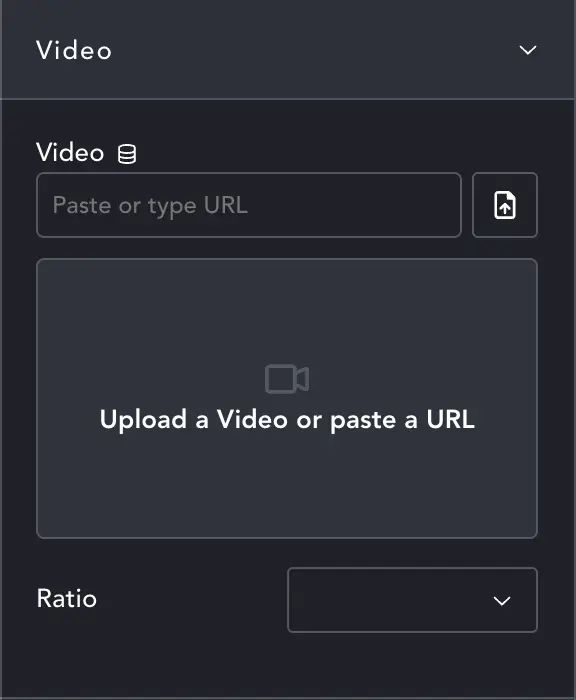
Adding video
There are the same controls with fewer options. Add your video via upload in the usual way.
Any ‘locally’ hosted video should work, just not streaming video from other platforms.
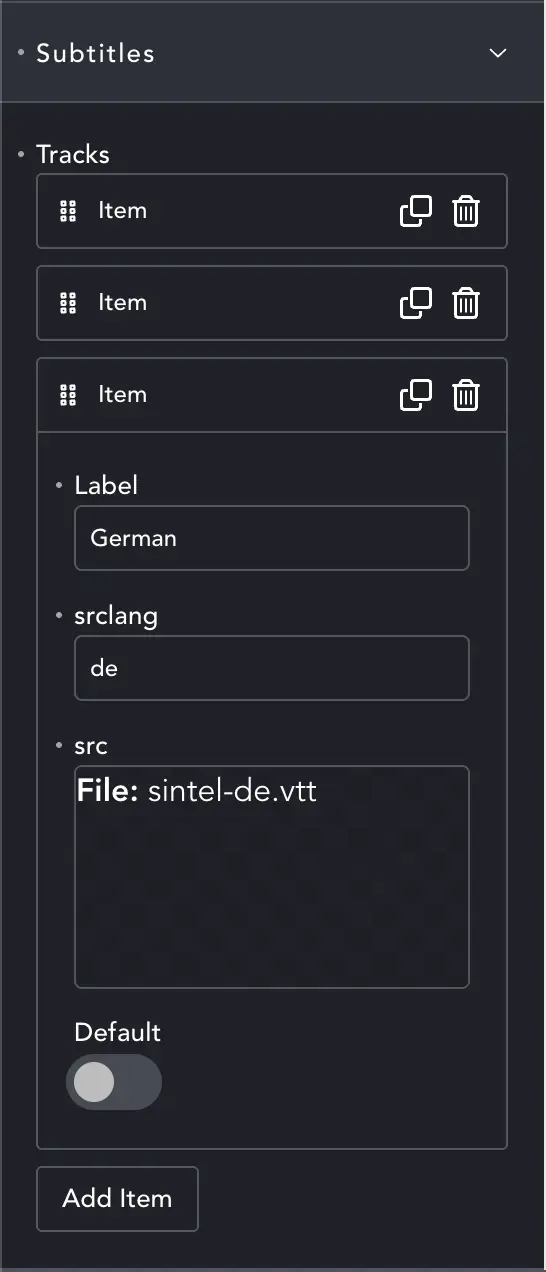
Adding subtitles
Subtitles commonly come in .srt or .vtt format. HTML5 only works with vtt. If you add an .srt file, the element will automatically convert it to .vtt. It will not keep a copy of your srt file, only the converted vtt.
Add as many subtitle tracks as you need.
Label – The label for the subtitle menu item
srclang – the two letter code for the country (e.g. de for German)
src – upload your subtitle file here
Default – You can choose which subtitles track plays by default. Obviously you should only enable this on one item.
That’s it. The video player automatically recognises that there are subtitles and will play your default track over the video.
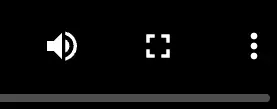
Selecting subtitles
Front-end players detect subtitles. For the Breakdance player, you’ll get the small 3-dot menu. Click it to see subtitle options. Each of your tracks will be there to select.