Content
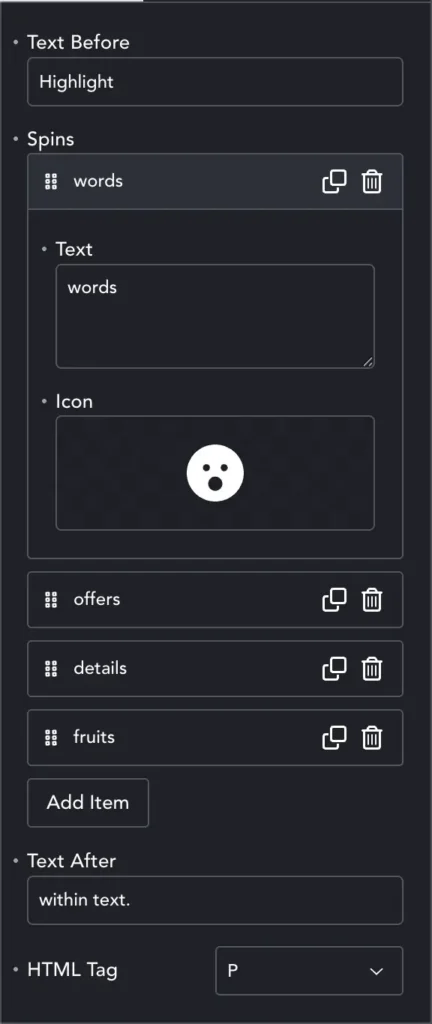
Text Spinner works a little like the Breakdance dual heading element. Put some text in the Text Before field. Add as many animating words or phrases as you want with Add Item.
Add the words to the Text field. Each animated word can include an icon on both sides, which you can choose with the Icon picker. Simply leave it blank to not include an icon.
Then add the text to come after your animated word in the Text After field.
You can choose the Tag for your text from the HTML Tag dropdown.
Effects and Styles
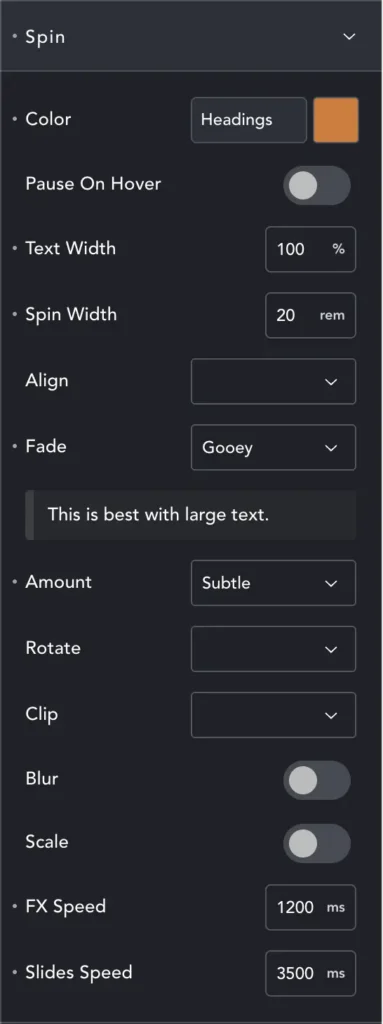
Our first design tab is Spin, where you can set-up the look and animation style. This Color is for the animated words. The outer text styles are set in the Typography tab.
Text Width – is the width of the text within the container. Spin Width is the width of our animated text.
You can Align the animated text inside its container – overriding the general text alignment.
Fade – select the main animation effect from: fade a simple fade, or with up/down/left/right movement. Erosion (sharper) and Gooey (more blurred) will ‘melt’ the text and can create very organic transitions. Water distorts text with a ripple effect.
Choose how strong the Erosion, Gooey or Water effect is with the Amount dropdown.
Rotate ‘flips’ the text horizontally or vertically.
Clip can prevent the effects from escaping their container, so ‘fade up’ for example doesn’t fade over the text above, but fades out of view instead.
Blur and Scale are additive, added to any existing effects. Blur works especially well with Erode and Gooey, adding the the liquid feel.
FX Speed controls how fast the animation runs. Slides Speed controls how long between word-swaps.