Every field can do more than just fetch or store a value — it can also feed Breakdance’s condition builder, and you can test what it returns without leaving the admin screen. This page covers both.
Using a field as a condition
Every field’s edit screen has an Expose this field in Breakdance’s condition builder checkbox. Tick it and the field becomes available as a condition source throughout Breakdance — in the visibility, template, and query condition builders. The operators you get (equals, after, contains, and so on) are determined automatically by the field’s Data Type, so a Date field offers date comparisons and a String field offers text comparisons.
This is how you wire up a membership or event plugin that Breakdance doesn’t natively understand. Create fields for whatever that plugin stores — a membership role, a subscription end date, a status flag — expose them as conditions, and then use them in three places: Templates, to serve different templates based on role, product line, or profile data; Queries, to list different posts or products depending on membership status or another plugin’s settings; and Elements, to show or hide individual elements based on roles, preferences, or dates.

Testing a field
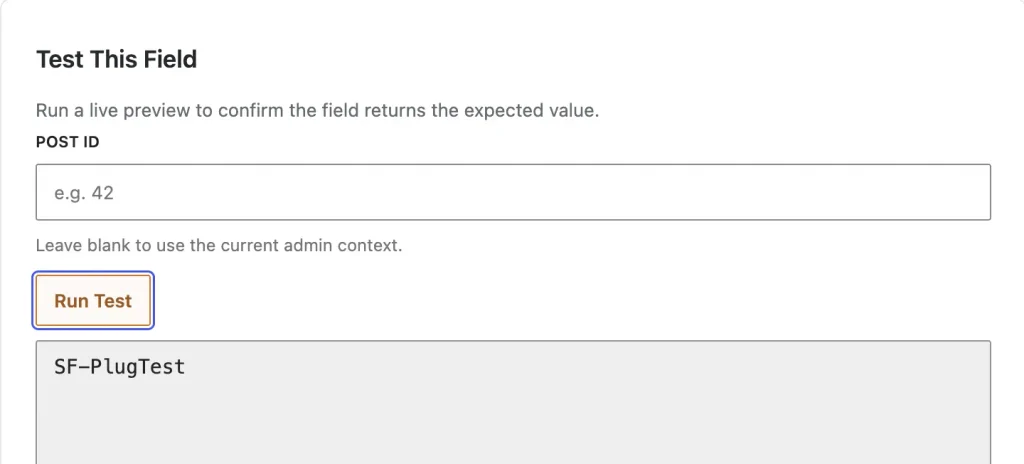
Open any existing field (Edit, from the fields table) and scroll to the bottom — there’s a Test This Field panel. Enter a Post ID (or leave it blank to use the current admin context) and click Run Test. Connect runs the actual fetch and shows you the real returned value in a result box below.
Use this before wiring a field into a live Breakdance element or condition — it’s the fastest way to confirm a Meta Key, Lookup Source, or Extract Key is actually pointing at the value you think it is, without having to build anything in the builder first.