Every field has a Data Type — it controls how the stored value gets parsed and returned to Breakdance. This page covers the seven types: String, Date, Serialised, JSON, Calc, Image, and Gallery.
String, Serialised & JSON
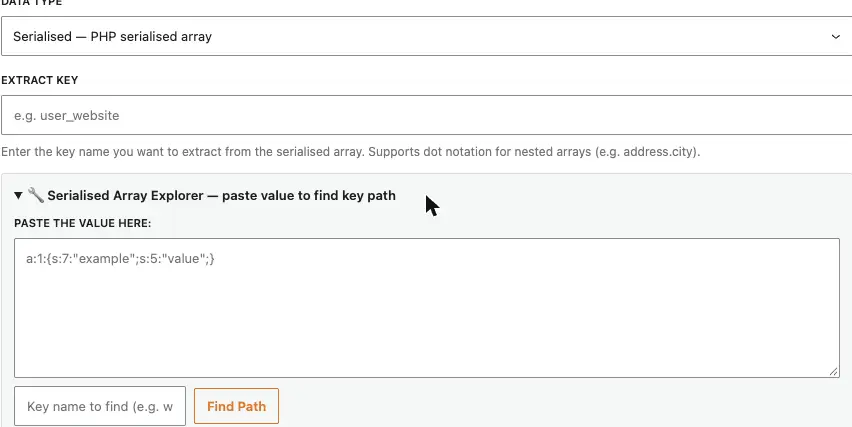
String is the default — whatever is in the source comes back as-is, no parsing. Serialised and JSON both extract a value from inside a structured string: set Extract Key to the key you want (dot notation reaches nested keys, e.g. address.city). Serialised expects PHP’s serialize() format, JSON expects a JSON string.
Not sure what the key is called? Expand the Serialised Array Explorer under the Extract Key field, paste a sample of the raw value in, type the key name you’re after, and click Find Path. It resolves the dot-notation path for you — click Use to drop it straight into Extract Key.
Date
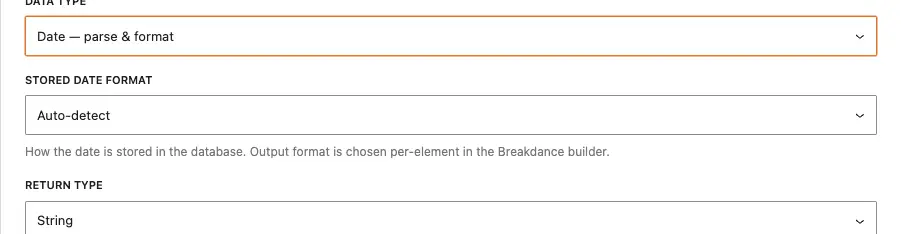
Date parses a stored date and lets Breakdance format it. The key setting is Stored Date Format — how the value is actually stored in the database, not how it’s displayed. It defaults to Auto-detect, and the field itself notes: output format is chosen per-element in the Breakdance builder, not here.
The other Stored Date Format options are for when auto-detect guesses wrong: Ymd (e.g. 20261231 — common with ACF and The Events Calendar), Y-m-d (e.g. 2026-12-31), and Unix timestamp (a plain integer). If dates aren’t displaying correctly in Breakdance, this is the first setting to check.
Calc Fields
A Calc field derives its value from another SC field rather than storing its own. Pick a Source SC Field, then an Operation — Add, Subtract, Multiply or Divide. If the source field is a Date field, the operation runs as date arithmetic; otherwise it’s ordinary number arithmetic. The Operand is either a literal value you type in, or another SC field.
Round To sets decimal places for number results (0 = integer, blank = no rounding). A worked example: a Breakdance form sets a hidden user_start_date field to “Today” on submit. A Calc field user_renew_date is set to Start + 1 Year. A Breakdance condition then gates content on “Renew Date is after Today” — no code needed anywhere in that chain.
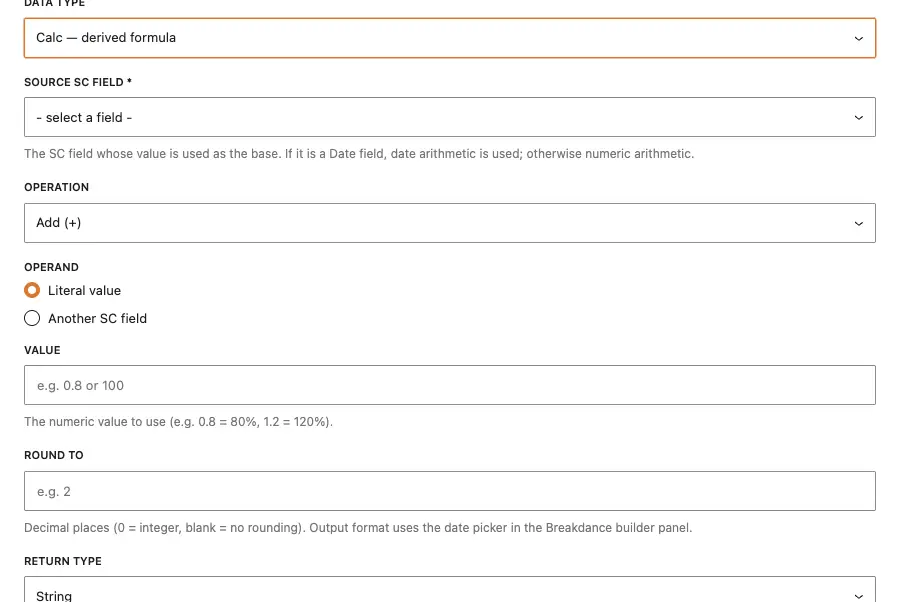
Image & Gallery
Image stores a single attachment ID; Gallery stores a JSON array of attachment IDs. Both set Return Type automatically (Image / Gallery) — that dropdown is locked, since Connect already knows what shape the data is.
Per-post galleries: Source Type = Post Meta, Lookup Source = Post (current post ID). With Data Type set to Gallery, a Limit to Post Types checklist appears — tick the post types that should get the gallery meta-box on their edit screen (leave all unticked to show it everywhere). A new “gallery” field then appears on those edit screens for editors to fill in.
Per-user galleries: Source Type = User Meta, Lookup Source = User (current user ID) — each user gets their own gallery, e.g. a member’s photo library.
Site-wide galleries: Source Type = SC Native — Global. Connect stores the value in its own wp_sc_global_values table rather than in post or user meta, and a Set Global Value box appears so you can set it directly from this screen without needing a form. Manage these from Smithy Connect → Global Galleries.
