The Signature field turns any Breakdance File Upload field into a draw-a-signature pad, using the SFF Signature form action. No separate field type, no custom upload path — the drawn signature submits as a real PNG file through the same file input, so every other file feature (attachments, Save to Post, secure storage) keeps working without extra setup. See the parent overview’s “What it adds” section for how this fits with the rest of Forms & PDF.
How it works
Add a normal File Upload field to your form, then add the SFF Signature action under Actions After Submission and point it at that field. On the frontend, JavaScript swaps the native file picker for a canvas the visitor draws on; when they lift the pen (or finger — touch works too), the canvas is converted to a PNG and written into the same <input type=”file”> via the browser’s DataTransfer API. Breakdance’s own submission, validation and action pipeline never knows the difference — it’s just a file, same as if the visitor had picked one from disk.
Setting it up
- Add a File Upload field to your form (Form Builder → Add Field → Type: File Upload).
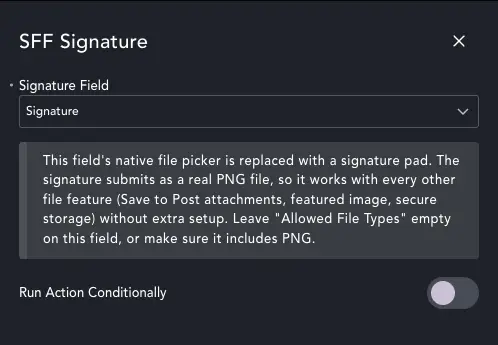
- Open Actions After Submission and add SFF Signature.
- Click its edit icon and pick that field from the Signature Field dropdown.
Leave “Allowed File Types” empty on the field, or make sure PNG is included — the signature always submits as image/png regardless of what the visitor’s device reports, so a stricter filter will silently block real signatures.
What the visitor sees
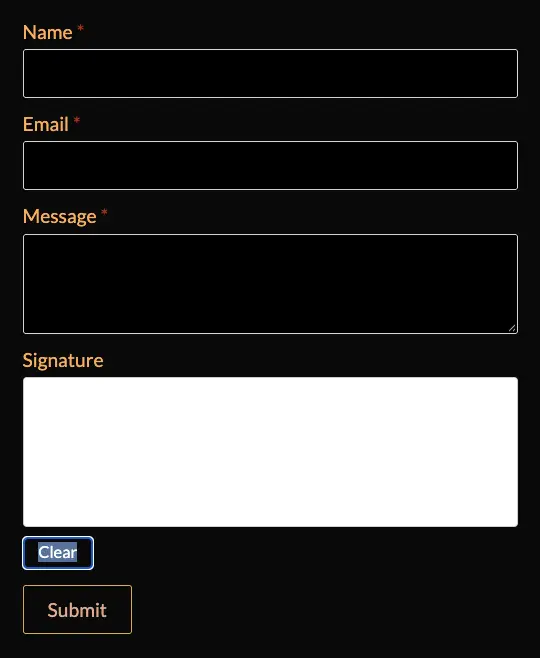
Once configured, the field’s file picker never appears — visitors see a blank canvas with a Clear button underneath. They draw with a mouse or a finger; Clear wipes the canvas back to blank without needing to re-select a file. If Breakdance’s own “Clear form after successful submit” option is on, the pad clears itself along with the rest of the form — the plugin listens for the form’s native reset event specifically to handle this, since a blank canvas doesn’t know on its own to reset when the rest of the form does.
Gotchas
- There’s no dedicated “Signature” field type in the builder — that’s deliberate, so the field behaves exactly like a native file upload in every other action, integration and validation path (attachments, Save to Post, secure storage, and anything third-party that reads Breakdance file fields).
- Leave “Allowed File Types” empty, or include PNG explicitly — see the Setting it up steps above; this is the single most common reason a configured pad silently fails to submit.
- The Signature Field dropdown only lists File Upload fields, and only once one exists on the form — until then it shows “Add a File Upload field to this form first” instead of an empty list.
- Only one File Upload field per form can be wired up as a signature pad — Actions After Submission holds a single SFF Signature entry. If you need two signatures on one form (client and witness, say), that needs two separate forms, not two instances of the action.
- If the visitor still sees the ordinary file picker instead of a pad, check in order: SFF Signature is actually added to Actions After Submission, the Signature Field dropdown has a field selected, and the browser console for a blocked or failed sff-signature.js load (a caching or minification plugin stripping it is the usual culprit).
Common questions
Does the signature pad work on phones and tablets?
Yes — the pad listens for touch events as well as mouse events, so drawing with a finger or stylus works without any extra configuration.
Can I add more than one signature field to a form?
Not as a signature pad, no — see the “one File Upload field per form” gotcha above. A second File Upload field on the same form stays an ordinary file upload.
What happens if a visitor submits without drawing anything?
That’s governed by the underlying File Upload field’s own Required setting, same as any other file field — mark it Required in the builder if a signature must be provided; nothing signature-specific needs configuring for that.