Overview
Smithy Connect allows you to fetch and write any data in your database, then use it as dynamic data, or a template, query or element condition.
This means that if ‘Bob’s Plugin’ isn’t compatible with Breakdance, but it tracks a very important date, you can fetch that date and display it, or use it to show/hide templates, sections, posts in a loop and so on.
Very Important Warning
You can break your website
You have to deliberately wire-up a really stupid field (like wp_options -> siteurl) – and then wire-up a form to save to it, and then let a random user enter whatever they like in it… but you can break your site if you do so. So don’t.
SC does not protect you from being stupid, there are simply too many ways in which people are able to be stupid and I can’t safeguard them all. So SC is built for people who will use it sensibly.
You can mangle your data
SC is built to be flexible. There may be a really imaginative and brilliant reason why you want to save JSON data to a date field. To allow you to wire-up whatever you need, SC doesn’t prevent you from doing weird stuff that might be terrible.
I am not responsible for your site melting if you save an image gallery to wp_options->date_format. This plugin is like a Swiss-army knife, you can either get pebbles out of hooves and saw tiny twigs like you should, or you can use the corkscrew as an eyelash remover and blind yourself.
If you’re not sure… don’t!!
If you don’t really understand what data your fetching, or what you’re saving… maybe don’t do it! At the very least, don’t blame the knife seller when you cut off your own foot.
Creating Fields
Everything works through fields – this is where we create the ‘secret sauce’ which can fetch and write information. In Smithy Connect, go to Dynamic Data to create your first field.
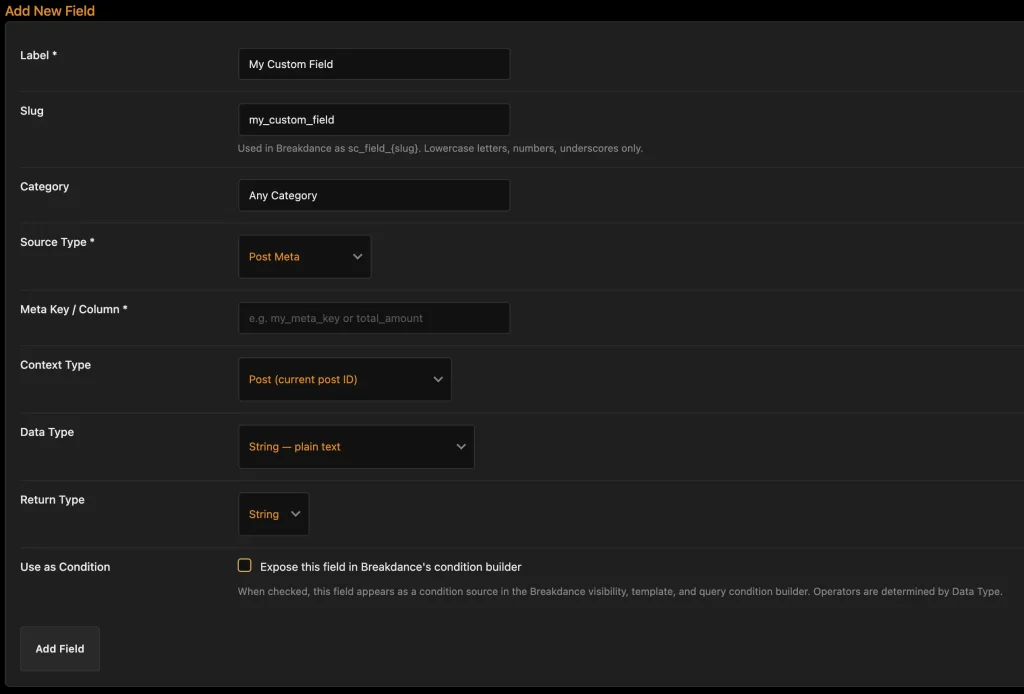
First, give your field a name, like ‘Date From Event Plugin’ or ‘Membership Tier’. The slug will be made for you, but you can change it if you want – using only lowercase letters, numbers and underscores. Everywhere we use our field we will see the label or slug, so make it meaningful.
Categories
Use the Field Categories page to add/remove categories. They are very simple. Smithy Connect is always a category. Add any number of categories, but since these appear in the dynamic data dialogue (and it could get very large) – just two or three is sensible. If you delete a category, any fields in that category are reverted to Smithy Connect.
The fields will be sectioned into those categories in the Breakdance Dynamic Data dialogue – to help you keep things organised.
Types of field
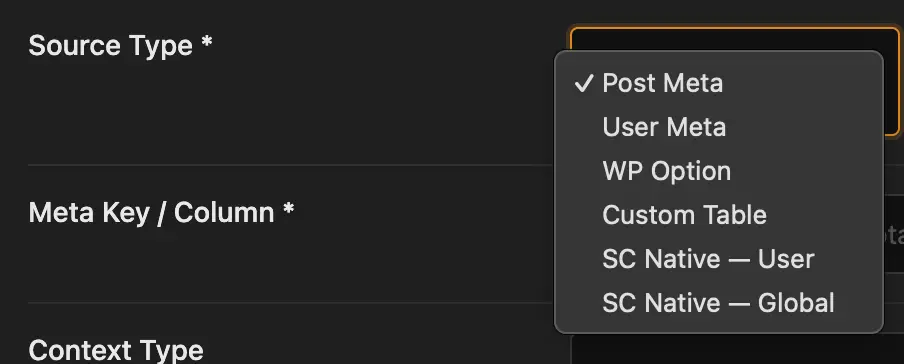
We can create several field types, and each will fetch from a specific place. The first three are the ‘WordPress basics’.
Post Meta – will fetch from the post meta table, User Meta from user meta, and WP Option from the options table.
Breakdance already gives us most post and user data – SC let’s us get the rest – or create it. If a Post or User Meta doesn’t exist, the first time you write to it, it will be created. That makes SC a lightweight but powerful custom field plugin, not just a ‘data fetcher’.
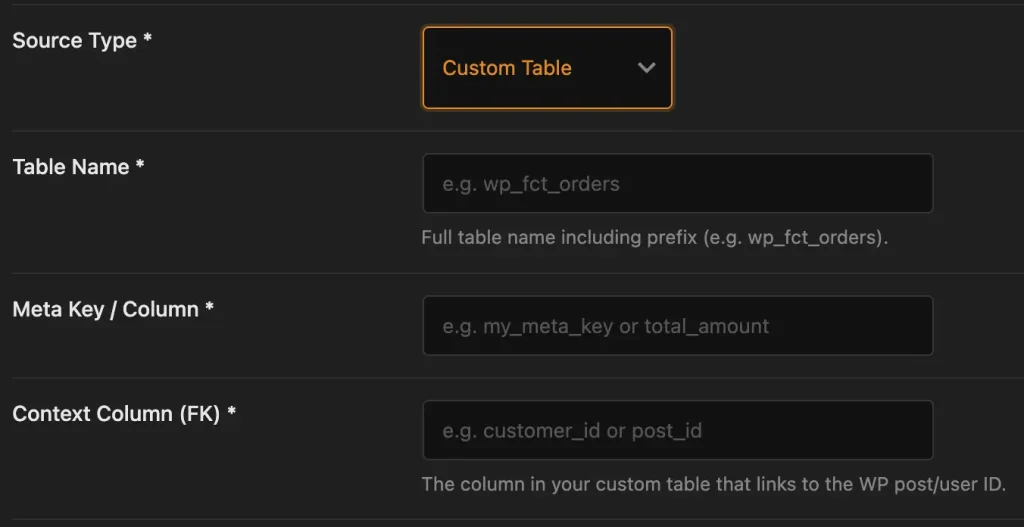
The Custom Table option allows us to connect to anything. Many plugins create a custom table to save their data.
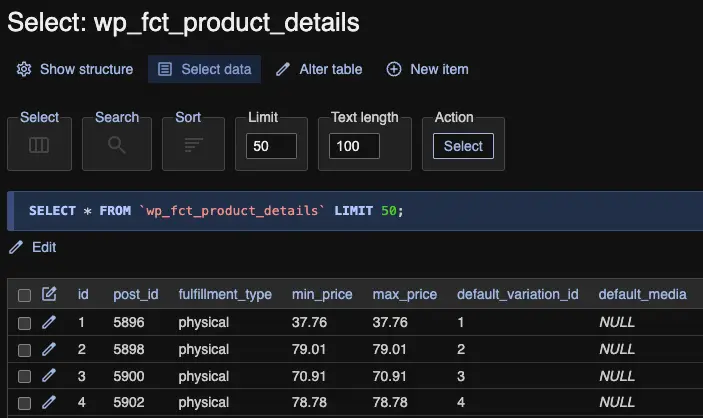
When you select Custom Table, extra fields appear. Our example is a FluentCart product table. We can see that it’s called ‘wp_fct_product_details’ – so that’s what we enter in Table Name. Let’s say we want to get the maximum price for a product – we would set Meta Key / Column to ‘max_price’ – the name of the column.
Next we need to give the field Context – this is the ‘look up’. For Post Meta, the context is Post ID – we want the meta that matches our current post ID. For the product price we also need the ‘post_id’ – the ID of the Fluent Cart Product.
If we use this field on a Product Template, as dynamic data – it will find the max_price for the current product displayed.
SC Native User / Global are part of the SC plugin. Two tables are created for you which allow you to set your own fields and values. If you want to create a Membership plugin, you can use the SC Native Users to store things like renewal dates, profile settings and other ‘unique to the user’ settings. Of course, you could use User Meta instead – but having a dedicated table reduces bloat for User Meta, and let’s you remove the table for a nice easy clean-up if ever you uninstall.
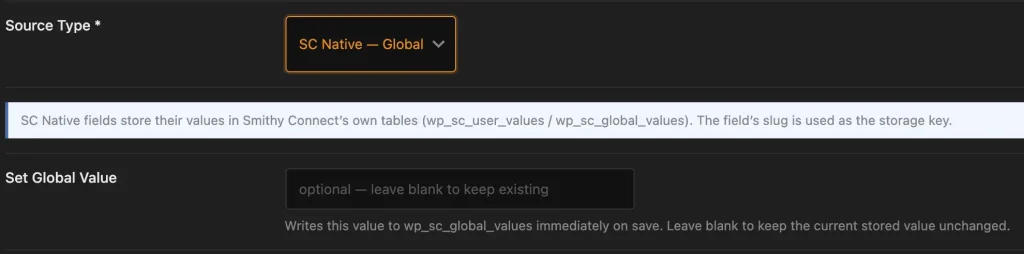
SC Native Global is a ‘wp_options’ type table. Use it to reduce bloat, allow easy clean-up, and give you an easy place to store site-wide settings.
Since Native fields use our tables, we don’t need to tell them where to save or how to look them up. User is found by User ID, Global is found by its own key – you don’t need to set context.
SC Native Global fields let you Set Global Value. This lets you set an initial value at create time. You can also come back and edit it later, allowing you to set and edit global values at any time.
Data Type
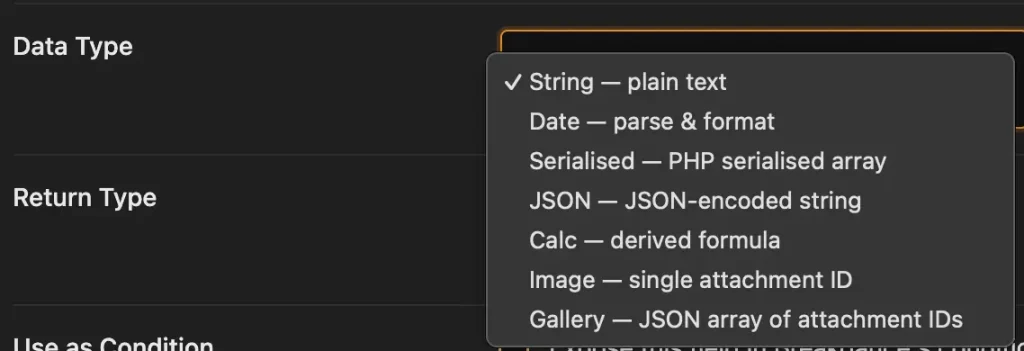
SC has several data types but aims to be flexible rather than exhaustive. The main types are String and Date, while Serialised and JSON are actually string, but read from and saved to an array.
String
String is any data, text, date, array – anything, but it is fetched and saved as ‘some text’. A date isn’t seen as a date, an array isn’t seen as an array. So you can fetch anything, but it is treated as a static bunch of text.
Date
There are a few odd behaviours in Breakdance with dates, especially in Forms – where they are not well handled. But SC works where Breakdance works. Dates, then, are saved as your selected format, and can also be formatted by Breakdance dynamic data advanced options.
If your goal is to be as compatible as possible with Breakdance, use the Y-m-d format, which Breakdance itself expects in many cases. For some fields you may still have to use Advanced options to set the format here to yyyy-mm-dd too. It’s a Breakdance quirk. This format works for dynamic data, conditions and to pre-populate form fields.
You can also select Ymd (which ACF and many other plugins use) or Unix – but while they will work for dynamic data and conditions, these may not work in forms.
Serialised / JSON
Serialised and JSON are similar – just different forms of array. Here we are able to pluck out one value from any array and also save back to it. This is really useful, because many plugins save their options as an array. Knowing how to get the data we want can be tricky, so there are helpers for both, but we’ll just look at serialised, as this is a standard WordPress format to save arrays. JSON works in the same way.
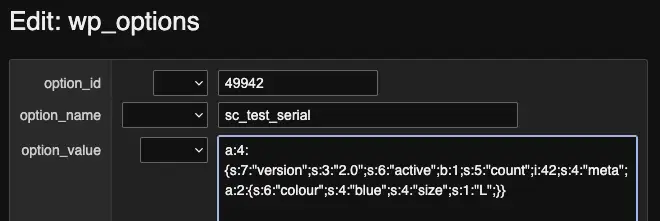
Here we can see a database entry saved as a serialised array. It’s a complicated looking thing, but is really just a group of option:value pairs, some nested inside others.
Let’s say we want to get the ‘colour’ value here – SC has a helper that can find it for you.
If you go into the database and copy the whole array, you get this:
a:4:{s:7:"version";s:3:"2.0";s:6:"active";b:1;s:5:"count";i:42;s:4:"meta";a:2:{s:6:"colour";s:4:"blue";s:4:"size";s:1:"L";}}Click the ‘Serialised Array Explorer’ and a dialogue opens up where you can paste this array. Then type ‘colour’ in the next box and click Find Path. The path to the colour value is shown below, in this case ‘meta.colour’, and you can click Use to insert that into the Extract Key.
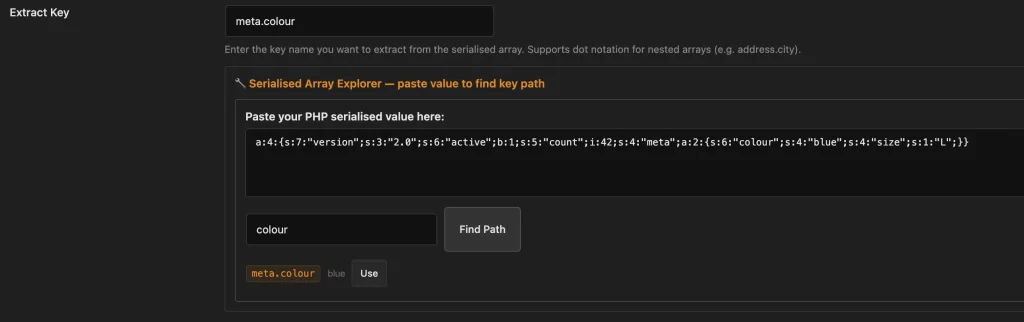
This field will now get just the ‘colour’ value from the array – and we can save a value there too, which we’ll explore later.
Calc Fields
These are helpers which will perform basic math on your field, useful for memberships, shops with seasonal events or event plugins, counters and similar functions. For a Calc field, we will provide a Source, which will be another SC Field.
If the source is a date field, we will see date operations, like + 1 month, minus 1 year and so on. If it’s another field type, we will see basic math.
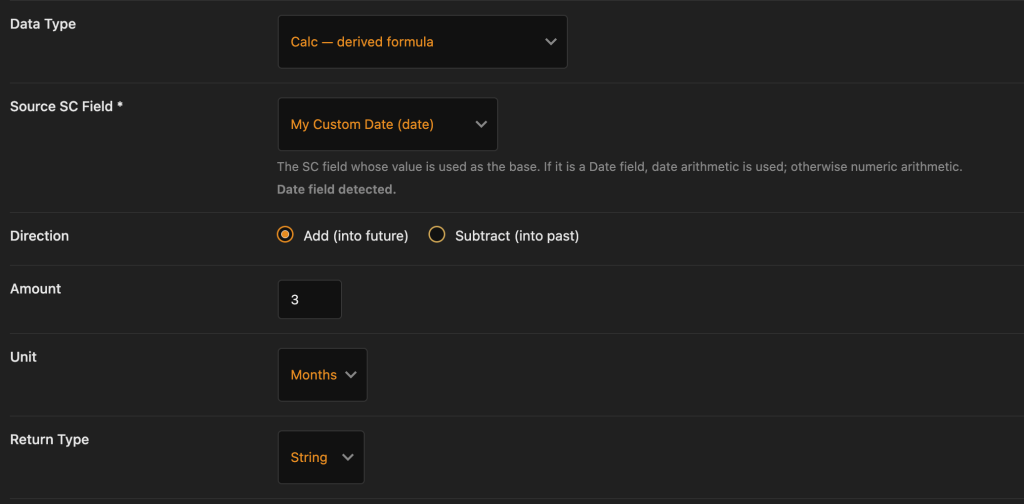
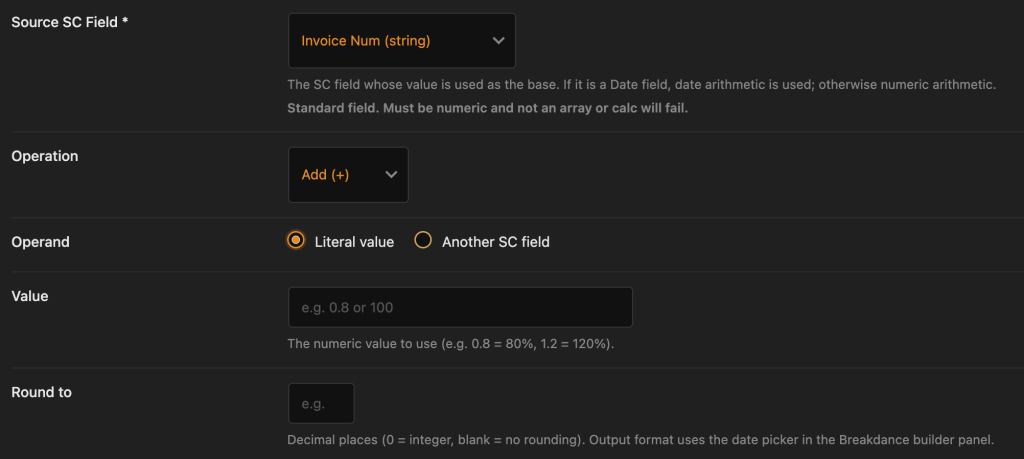
You can then use these fields for basic operations. You might have two fields ‘user_start_date’ and ‘user_renew_date’. In a Breakdance form we create a ‘Renewal Form’, add the ‘Start date’ as a hidden field set to ‘Today’. On submit, the start date is saved, and the Renew Date is automatically calculated as ‘Start + 1 Year’. Now we can track when their subscription ends. We can also gate content behind a condition of ‘Show only if Renew Date is After Today’.
Image / Gallery
These are special helpers for enabling a per-post, per-user or site-wide image or gallery. Since they are quite extensive we will look at these separately – but they work much as you would expect.
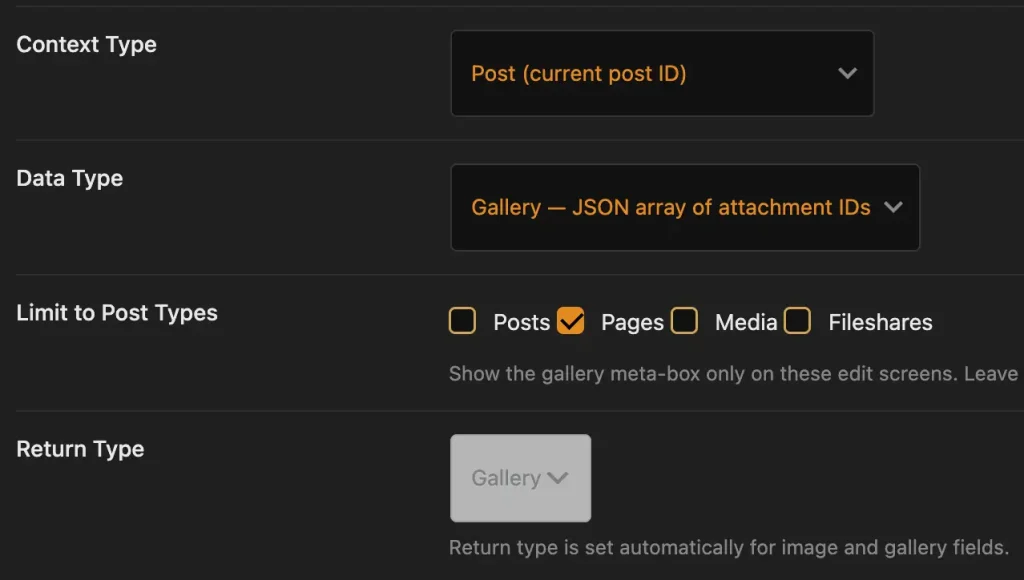
If you want galleries for posts or pages, set the source as Post Meta and Context as Post ID. You will then get the option of selecting which post types to enable the fleld on. A new ‘gallery’ field will display on that post type.
For site-wide galleries, use the SC Native Global source type, data-type Gallery. You can then manage these global galleries from Smithy Connect->Global Galleries admin page.
For users, set source as User Meta and Context as User ID.
Conditions
Our last option is Use As Condition. If you enable this your field becomes a condition in Breakdance. If you create a ‘User Start’ and ‘User End’ date, or ‘Membership Role’ and enable them as a condition – you will be able to use these:
- In Templates – so you can use different templates based on membership role, product date (for ‘new product line’ templates), user profile settings and any other data.
- In Queries – so you can list different products and posts depending on membership status, profile settings, the settings or status of another plugin etc.
- For elements – to show/hide elements based on roles, preferences, dates etc.
This way, you can wire-up any membership or event plugin that is not natively compatible with Breakdance and use any setting, date or role from that plugin to control content in Breakdance.
Test Field
At the bottom of the screen is an option to test your field. This will run the ‘fetch’ and show you what data that field returns. This is useful for making sure the array value you chose is correct, or otherwise making sure a field works before using it live.