Smithy Connect includes both Image and Gallery fields. This allows you to add images or galleries to any post-type, to users or as global items. Add a second product image gallery, use it for listings images or as a background slide-show for any section.
Images are a future feature that isn’t fully developed. You can already add a featured image – hopefully the SC Image field will find it’s purpose soon.
Adding to Posts or Users
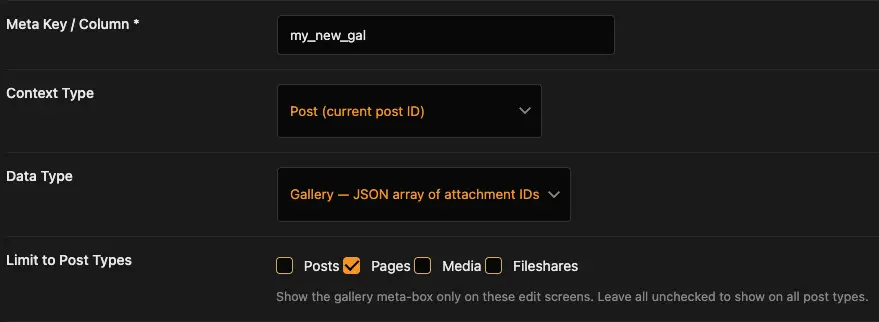
When you add a gallery field and set it to Source Type Post Meta, you’ll get a checkbox for every post-type on your site. Select any where you want galleries.
If you select Source Type as User Meta or SC Native User, and Context as User ID – a meta field is created for each user.
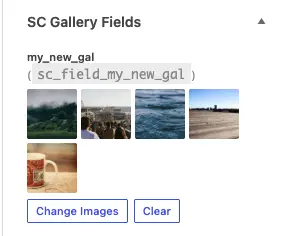
For posts – you will now see a new meta-box on each post/page in the WordPress editor. Add, change or clear the images. This gallery will display on a template that has a gallery element, where you use Dynamic data and connect it to our SC Gallery field.
Global Galleries
If you set the gallery field Context to SC Native Global, or WP Option with Context set to global – you can now use the field as a gallery anywhere on the website.
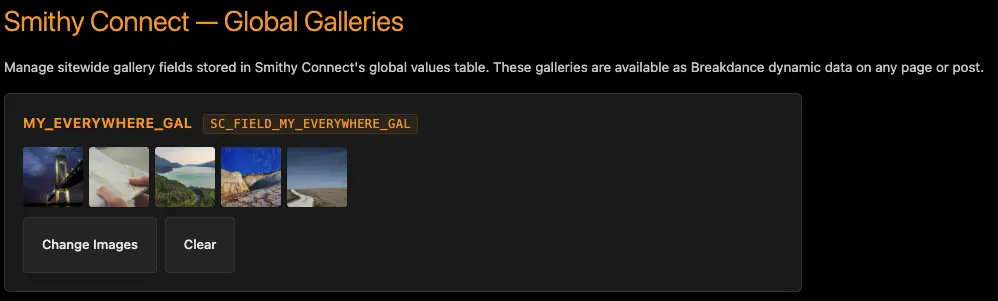
The Global Galleries admin page let’s you set the images for each gallery, and they can be used with any gallery anywhere on your website.
You can also allow users to upload images to one of these galleries through a Breakdance form.
Display Galleries
SC Galleries can be used like any other dynamic data. The Gallery can feed a Gallery element, but also a Background Slideshow for a section.
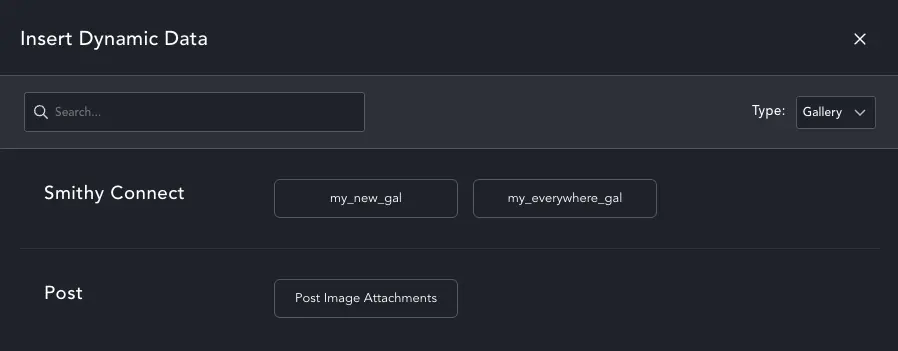
Simply add a Gallery element and use the dynamic data option to connect to your SC Field. Do the same for a background slideshow.