You can use the native Breakdance form and have it create a PDF from the submission, attach it to emails, and save it to the stored submission.
Setting up From2PDF
There’s a PDF Settings option in the Smithy Factory menu. At first you only have the option to Enable mPDF functionality. If you tick this and save, you will have an exciting world of options… ooh.
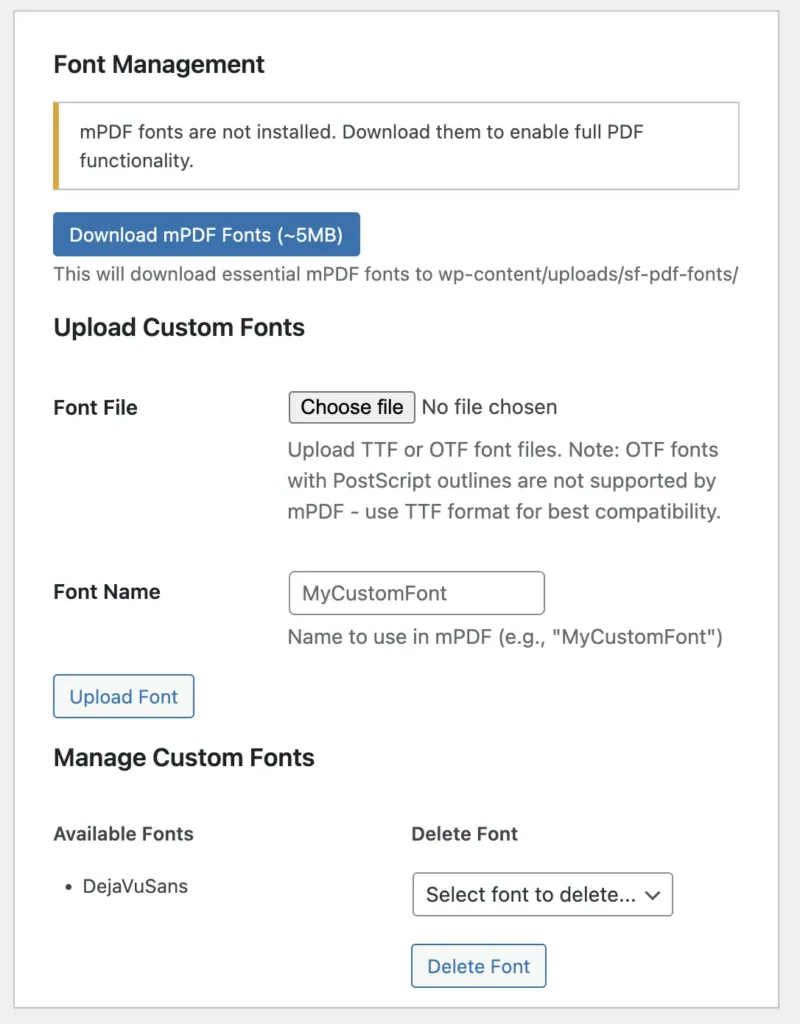
Font Management
mPDF needs a core set of fonts in order to work. You should download these to get started. It’s about 5MB of fonts. They will be saved in your uploads folder inside /sf-pdf-fonts/
Without these fonts mPDF will not work, so do this first.
Once the core fonts are added, you can add any custom fonts you want. mPDF cannot understand fonts with Postscript Outlines. Not all OTF fonts have Postscript Outlines, but many do. It’s best to stick with TTF – or you can convert your OTF to TTF (e.g. at FontSquirrel).
To add a font, simply choose file, select the font, give it a Font Name and click Upload Font. A list of fonts will be displayed. You can also choose any font from the dropdown under Delete Font to remove it.
You cannot just copy fonts directly to the folder. Use this font uploader to ensure they are registered properly.
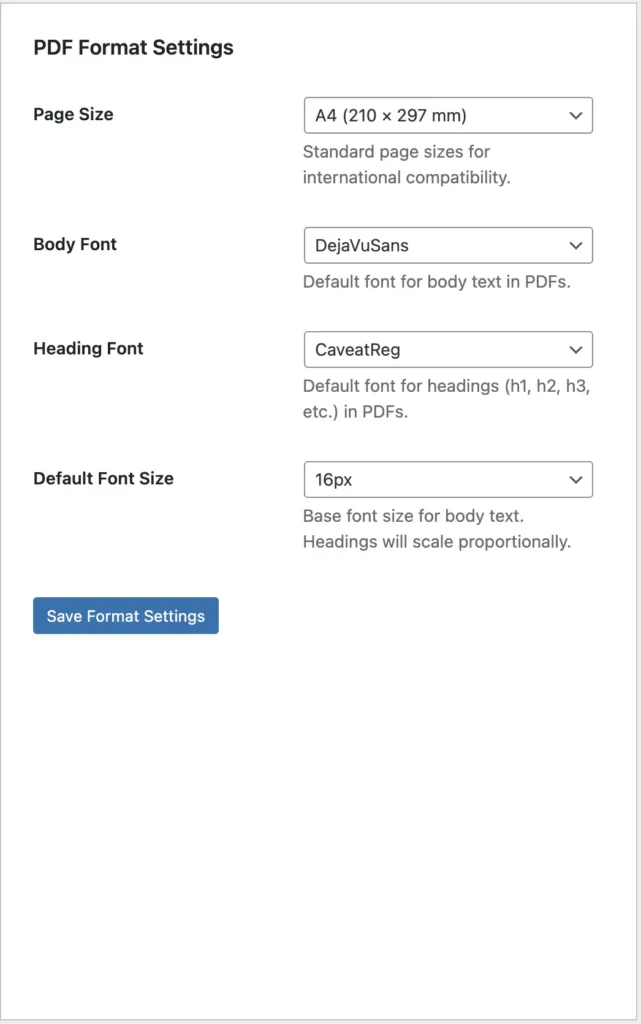
PDF Format – Basic Layout
Once you have fonts, you can select them to use with your PDF.
You can also choose a Page Size and the Default Font size. These are most useful for the ‘manual’ PDF, where you simply use the WordPress tinyMCE editor to create your PDF content.
If you decide to use a template, you can set default font-size and every other setting in much more detail. mPDF can recognise most basic CSS declarations. It struggles with the more modern stuff like flex-box and grid.
If you need help getting to sleep tonight, you can read about what is supported on their docs here.
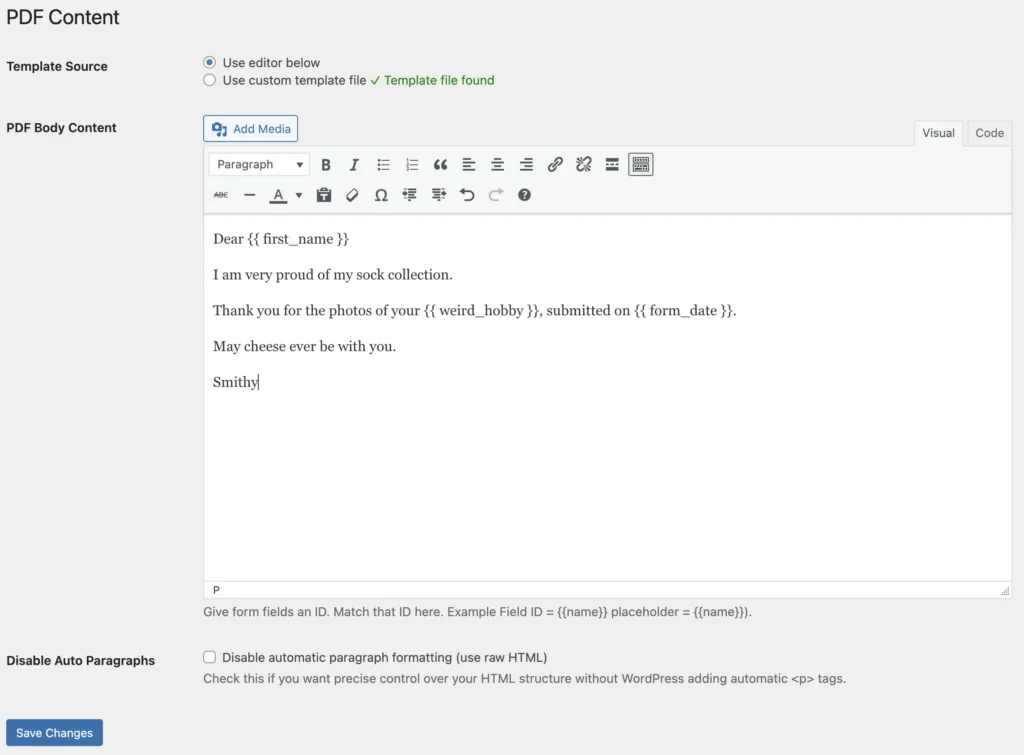
PDF Content – Creating your PDF
By default you will have a similar interface to ye-olde classic editor. You should be familiar with the toolbars so I won’t detail those.
It’s worth knowing you can Disable autoP – so that WordPress won’t add <p> tags or remove them. Tick the option below the text editor.
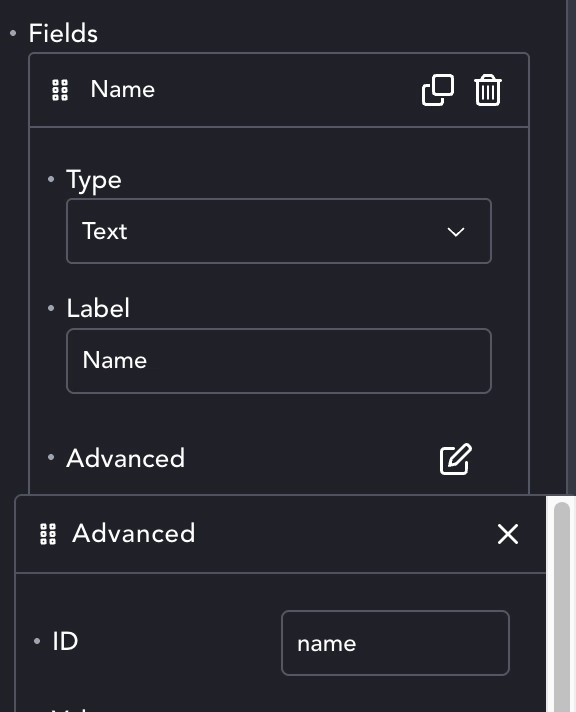
When making your PDF you can add fields from your form by wrapping them in curly braces {{ like_this }}. You should use the form field ID.
You can see the default form field here for Name and that it has an ID of ‘name’. So if you want this field in your PDF, simply add {{ name }}, and it will be replaced by the form submission data for the Name field.
You can also add images, like a footer logo. If you add too much content, mPDF will simply create more pages.
PDF Content – Using Templates
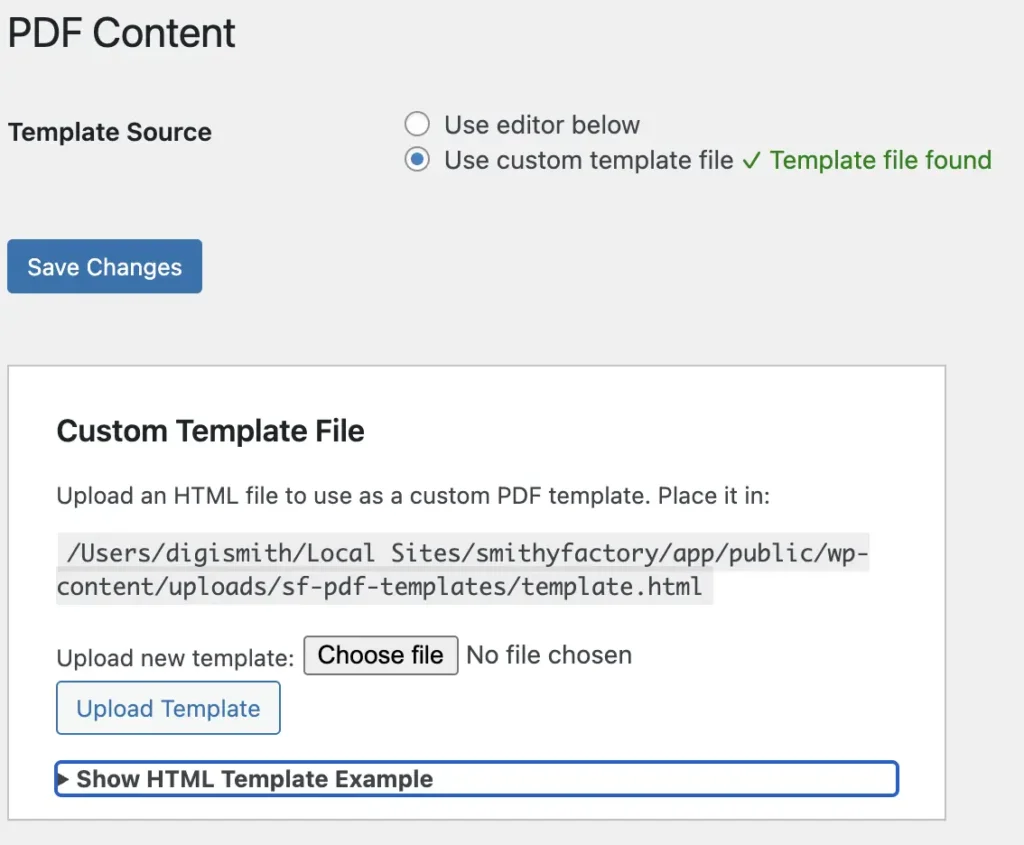
If you choose to use a custom template you can create you entire PDF with HTML. mPDF docs are the place for in-depth tutorials, I’ll just give the basics here.
The template is kept in the uploads/sp-pdf-templates/template.html – and you can upload this directly, or using the option on the admin page.
There is a Show HTML Template Example which will give you a starting point for how you format the template. Essentially you are creating a print-intent web-page. You can set sizes in pixels, mm, in, em, rem etc. – but of course there’s no responsive behaviour. Add a 1920px wide div of text to an A4 page in portrait, and it will just get cut off, as A4 is 595px wide.
Using the Form2PDF for a form.
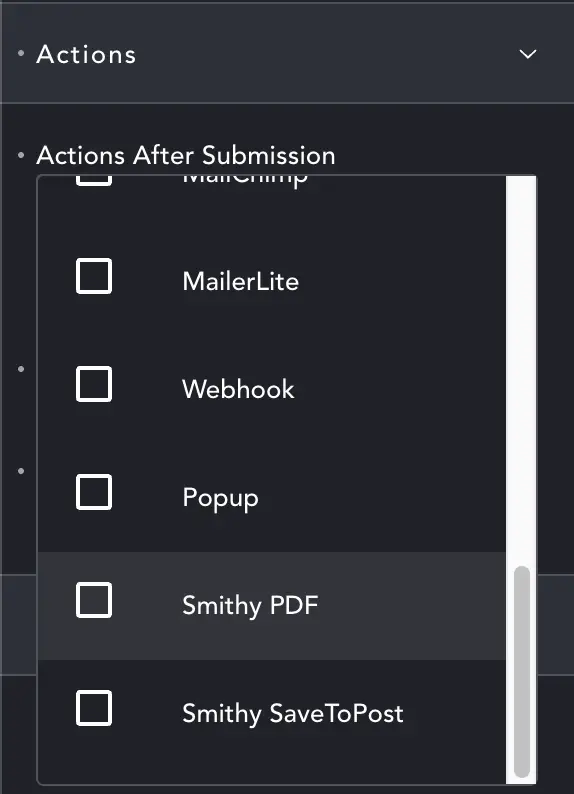
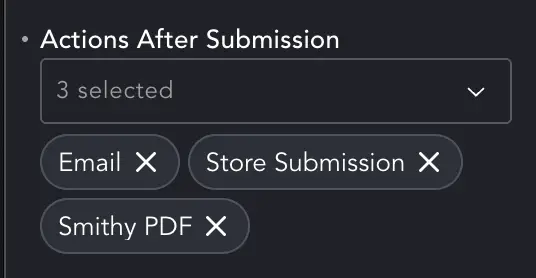
Form2PDF is available for the default Breakdance forms as an action. Just as you might add email or save submission, you can add Smithy PDF as an action. It will ride along with other actions to get what you need.
Think of Smithy PDF as a file upload. If you want to have the PDF emailed to you, add an Email action and select ‘attach uploaded files’. If you want to save the PDF with the form submission, select the Store Submission action and choose ‘Store Uploaded Files’.
When attached to submissions, the PDF will be saved in the Breakdance secure folder and added as a download-link to the admin-page for that submission.
Form2PDF does not currently support ‘add to media library’. It’s on the road-map… of a very long road 😉
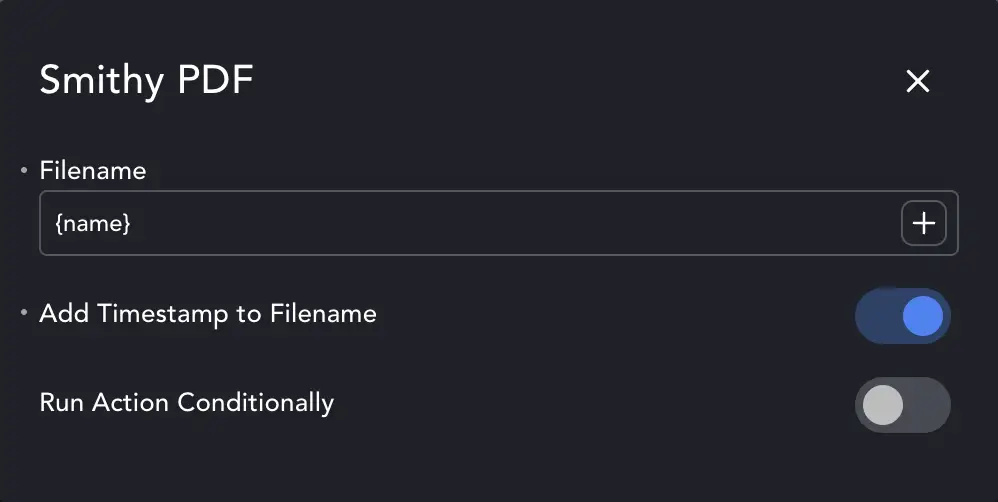
You can click the Smithy PDF options popup to get the file name dialogue. You can type into the Filename field, choose a form-field for the name and add a timestamp. The timestamp is just a helper. {{ name }} and the timestamp will make sure two John Smith’s PDFs have different names and won’t overwrite each other (they are very unlikely to anyway).
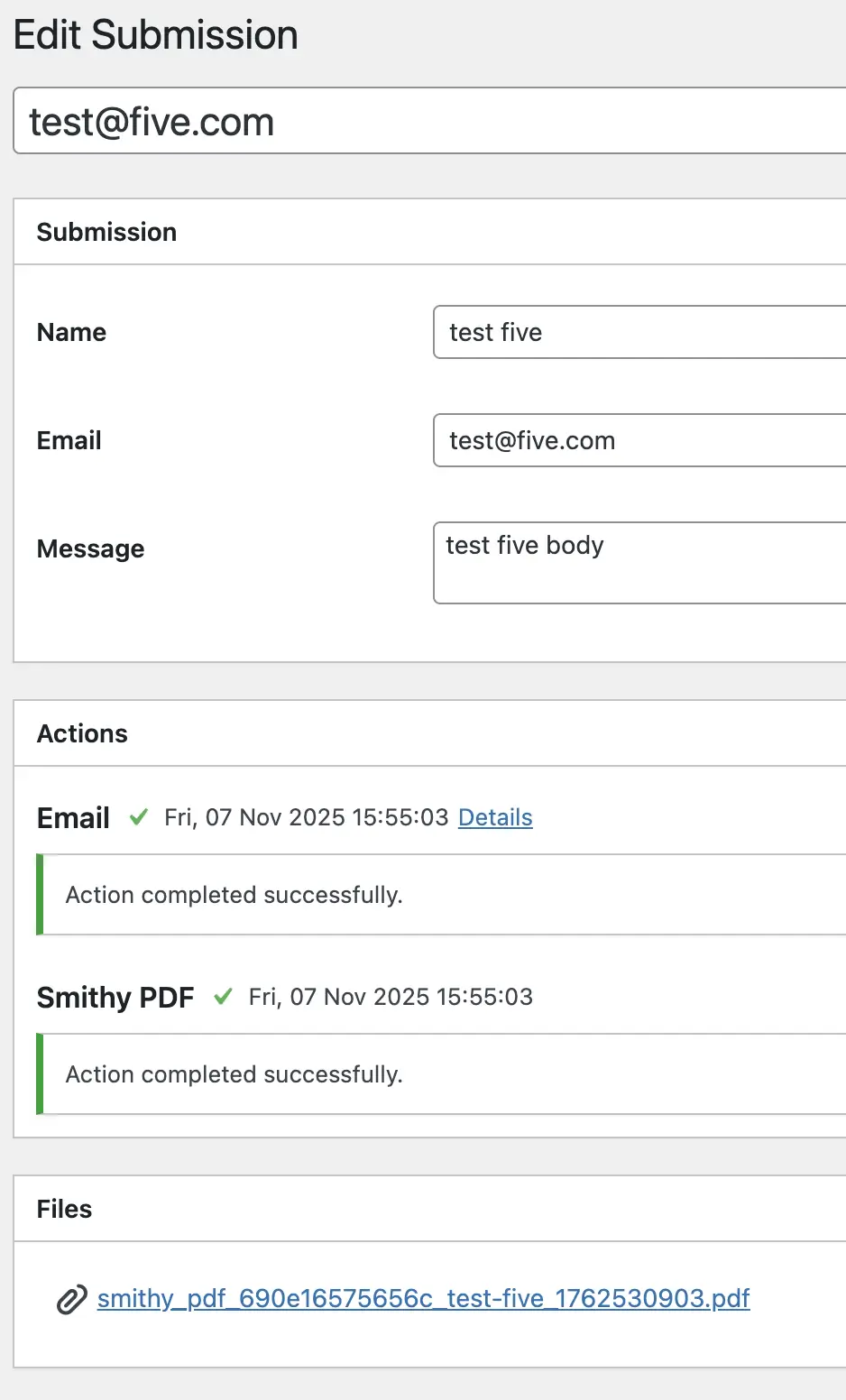
For the sheer joy of having more images, here’s one of the submission admin screen. If there were any problems creating or sending your PDF, the error will appear here. In the rosy and delightful world of good things, the PDF will be available as a link to download.