Light uses a simple script to create animations. Not as silky as WebGL but much lighter on the page. WebGL docs are here.
Light MODE
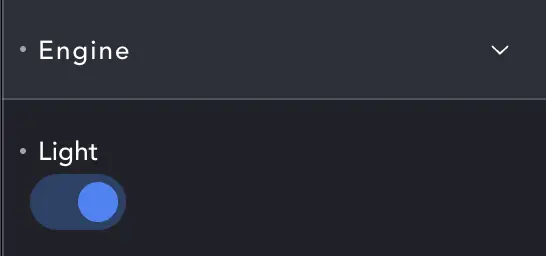
The Light switch set to On puts us in light mode, with a much simpler script driving the animation.
Gradients
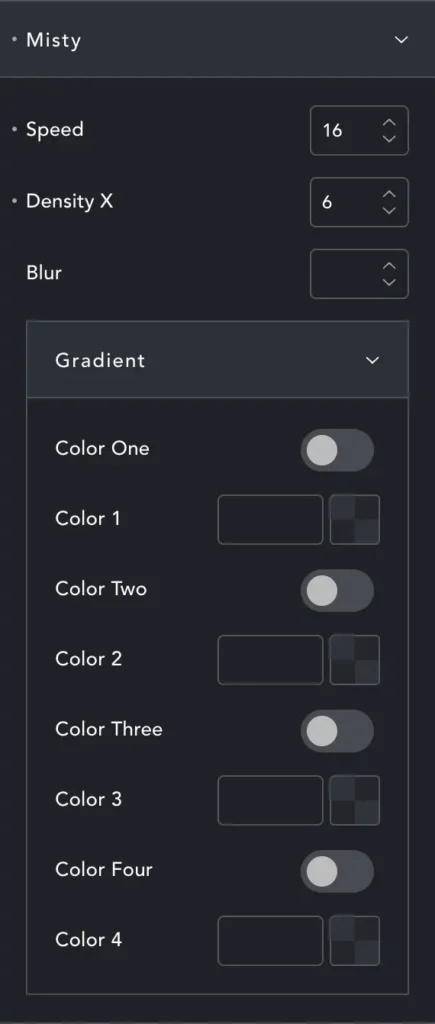
In Light mode Misty has only a few options to control color, speed and blur.
Speed – control how fast the gradient animates.
Density X – Think of this as ‘grid size’. A grid size of 1 is fine detail (but more processing work). A grid size of 60 would show quite large squares. So from 1-10 are smooth gradients, and larger numbers look blocky, giving some nice quirky options.
Blur – Works with density. A larger Density can still look like a smooth gradient if you add some blur.
One example would be DensityX set to 120, and Blur set to 6, which can create an effect like glass cubes.
In Light mode we always use all the colors. Set two the same if you want fewer colors. You can use CSS vars (like the Headspin framework) or Breakdance colors.
Light mode supports opacity. If you set all colors to opacity: .5, it will be .5 all over. If you set some to opacity: .25 and some to opacity: .5 – you’ll get various opacities between .25 and .5.
Styles
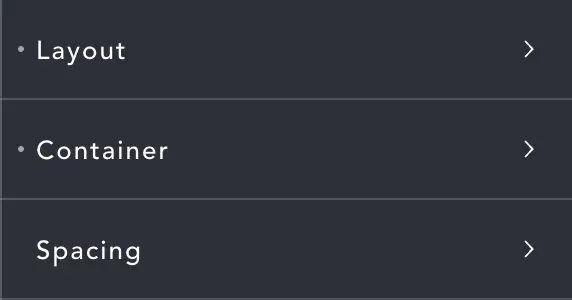
Layout, Container and Spacing are the same as with any Div element in Breakdance.
Mobile
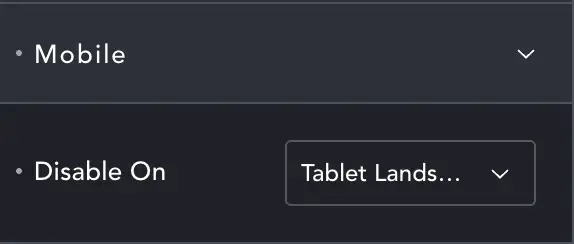
Misty can be set to disable at a breakpoint. When disabled it displays a simple gradient of the colors you selected above.