WebGL mode is the full shader version as seen on the Stripe website. The Lite version docs are here.
While Play Misty will stop animating when off-screen, to improve overall page-performance, it’s best to use just one instance per-page. More are possible if you have better hosting, and don’t mind potential slow downs if people are using old browsers or computers.
WebGL MODE #
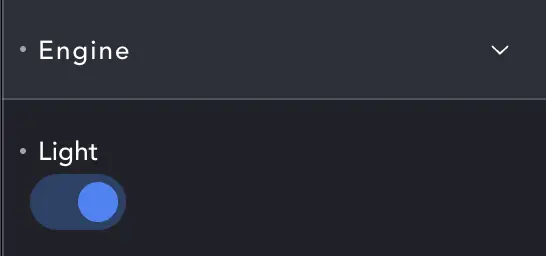
The Light switch set to Off puts us in WebGL mode, with much smoother gradients but more processor-intensive.
Gradients #
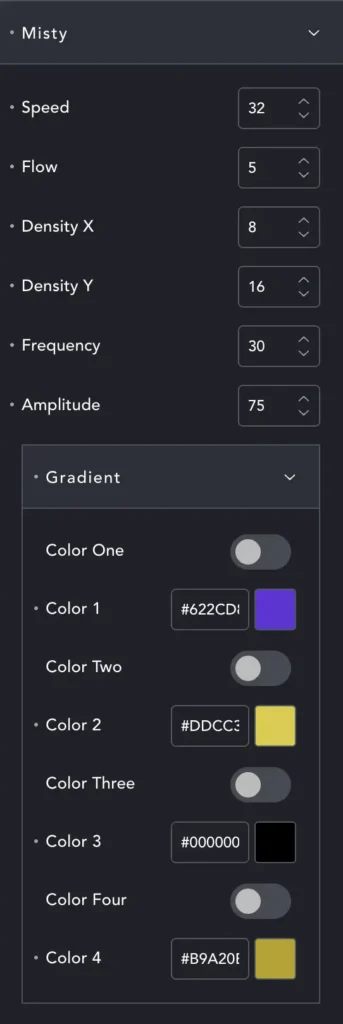
In WebGL mode Misty has several extra options.
Speed – For Light speed controls how fast colors blend AND move. With the WebGL version it controls how fast colors blend.
Flow – Where speed controls the blending of colors, Flow controls how fast the whole ‘cloud’ moves. 4 = move left slowly. -30 = move right fast.
Density X/Y – This is ‘dot size’. In WebGL we always have a smooth cloud of colors, but can add a touch of graininess with higher numbers. Warning: Anything above 20 risks a distorted mess. Really these setting don’t make a huge difference, but larger numbers reduce complexity and how many calculations are needed – improving performance.
Frequency/Amplitude – These work together. Think of a sound-wave. The frequency is how close together the waves are. Amplitude is how high the waves go.
Lower numbers will create drifting clouds of color with large areas of each color. Higher Frequency creates smaller areas of color. Higher Amplitude will create noticeable peaks and delineations between colors. It’s best to experiment in the configurator to see how these settings all work together.
Styles #
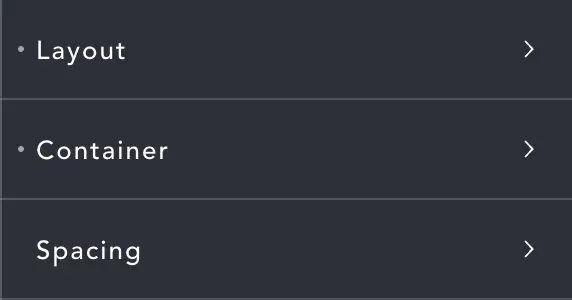
Layout, Container and Spacing are the same as with any Div element in Breakdance.
Mobile #
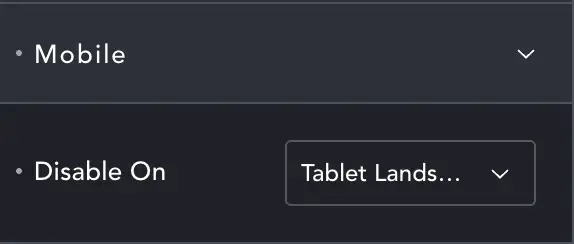
Misty can be set to disable at a breakpoint. When disabled it displays a simple gradient of the colors you selected above.
The configurator #

This is a playground where you can mess with settings and immediately see their effect. Once you’ve got settings you like, press the ‘Copy Settings’ button. Return to Breakdance and hover the ‘Misty’ section of the elements settings, right-click and paste the settings in.