Smithy Portal is a document sharing platform. Over time the aim is to extend it into a lightweight, fully integrated membership plugin including paid subscriptions. For now, it allows you to create some basic user roles and permissions, a CPT and custom fields, and add files to the posts which can be downloaded. You can also give certain roles permission to edit and manage posts from the front-end.
Basic Setup
You can set-up in any order, but if you follow this flow you’ll have a ready-to-use file sharing portal in about 20 minutes.
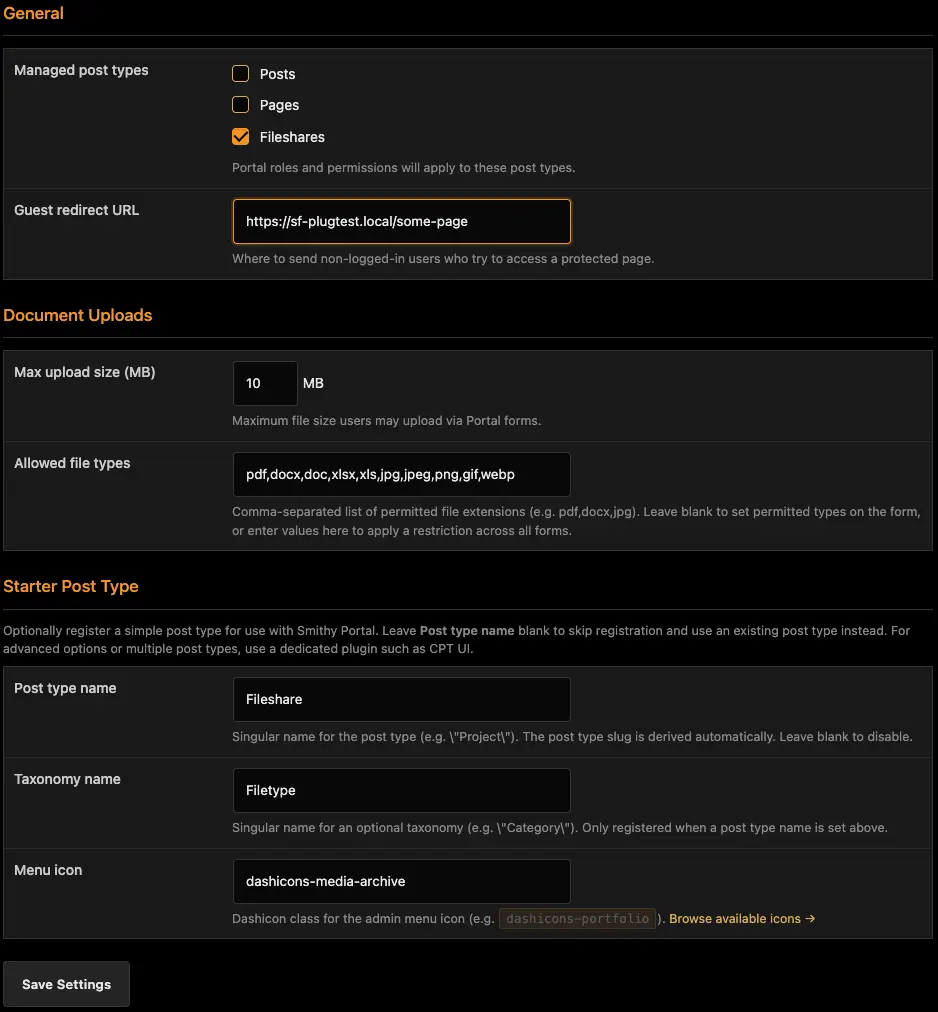
While you can use ACF, or other custom field and post plugins, Smithy Portal includes everything you need for the basic setup.
The last three options in Settings allow you to create the post type and taxonomy for your file portal. If you need to use this option, do this first and save settings.
Once you’ve registered your post type, you can select it in General. Any Fields you add will be linked to this post type.
You can also set a Redirect URL. This will be where users are sent if they don’t have permission for a post, or if they delete a post so their current URL is no longer valid.
Document Uploads allows you to set global restrictions for which file types and what the maximum file size is that can be uploaded.
You can also set this on a per-form basis. If you leave it blank in admin and the form any file of any size can be uploaded (not recommended). If you set it in admin, per-form settings will override it – so settings here make for a good safe fallback.
User Roles
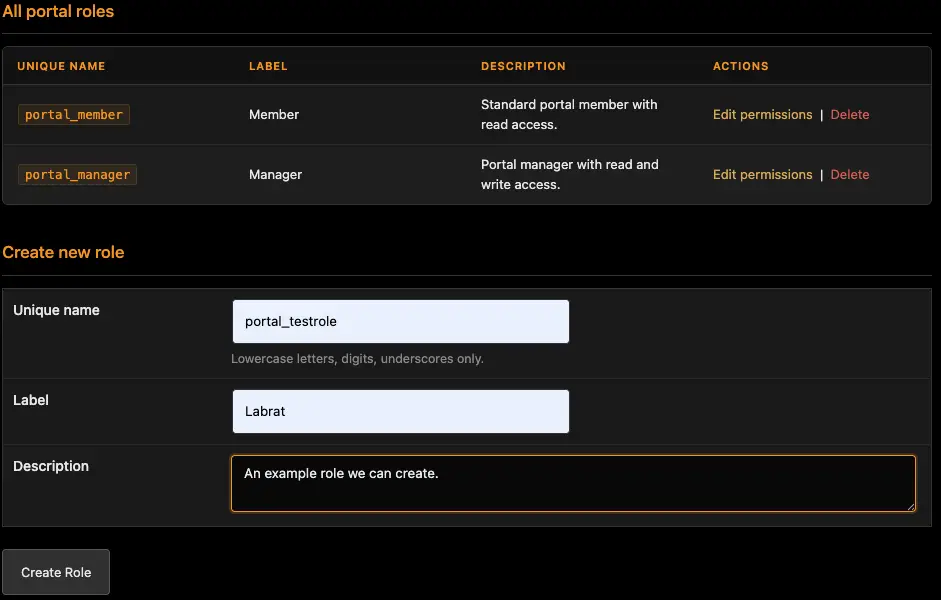
Two roles are built in, for a Member and a Manager. You can also create new roles. These are then available in the Breakdance conditions to show/hide things based on role.
The unique name is the ‘field key’ and accepts only letters, numbers and underscroes. The label is the ‘human readable’ name. The description is optional and just for helpful notes.
You can set-up and change permissions for any role with Edit Permissions.
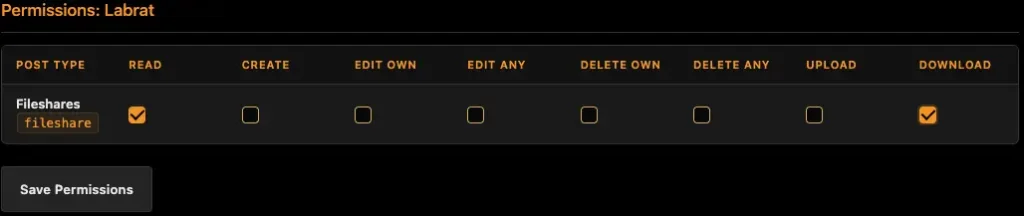
Each user can be given permissions for the managed post types which work as the WordPress permissions. A typical ‘subscriber’ should be able to at least read posts and download documents – but you can gate downloads too.
A manager should have full permissions, and you may want to add a ‘middle user’, who can add posts and documents but not edit other peoples posts.
Custom Fields

Smithy Portal allows you to create basic custom fields for your post type. The file attachments are already handled (no need for a ‘document’ or ‘file’ field), this is for any extras you need.
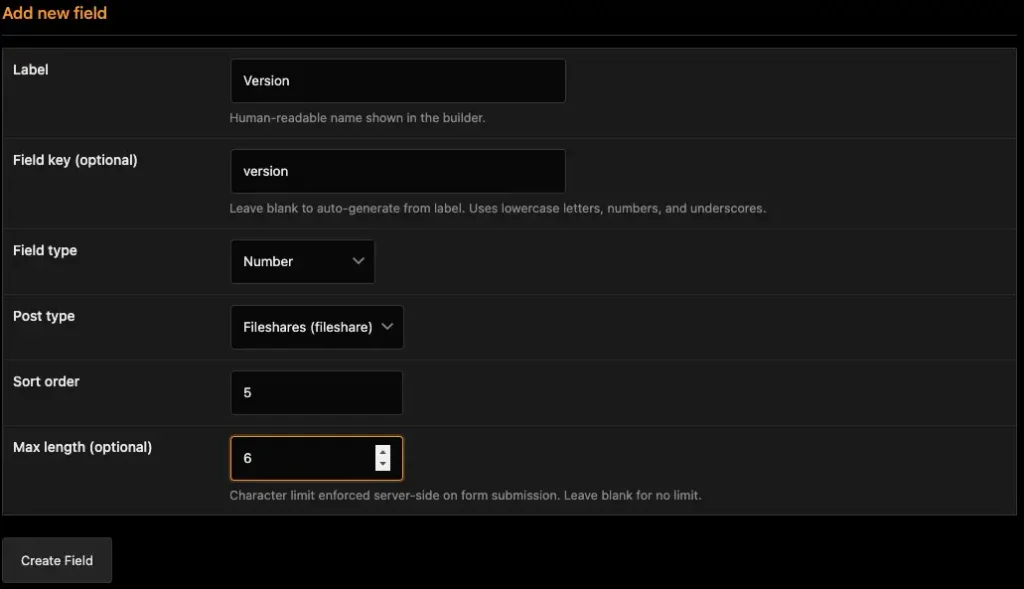
To add a new field, enter the helpful Label, the unique Field Key, select the Type and which Post Type you want to attach it to.
Sort Order is optional but can be used to decide the order of fields. It’s more for ‘future features’ but can be used now.
Max Length is for text fields and can be used to limits characters per field.
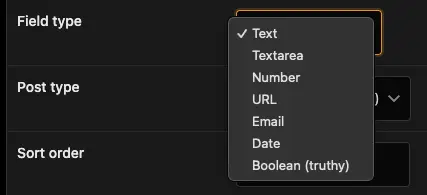
Smithy Portal provides a simple set of fields, single line text, text area, number, URL, email, date and boolean (true or false).
These fields are also registered with Breakdance so become available as dynamic data to help you build your templates.
The basics are done!
You now have a custom post type where you can add files, and are ready to create some templates for your document portal.
Documents
The last menu option will be empty, because we haven’t used our portal yet. Once you have created some documents – and a few users have removed them, you’ll find them here. Documents are deleted with the Portal Control element – which if set to permanently delete the document, will remove it and it won’t be listed – it’s gone. Only if you choose move to trash, or do not enable Remove deletes actual file – will documents go to trash and can be recovered. This is explained fully in the Templates doc.