Dotty has many style sections, but they are all Breakdance native controls, as you would get with any section. Here we’ll just look at the stuff you need to know for Dotty.
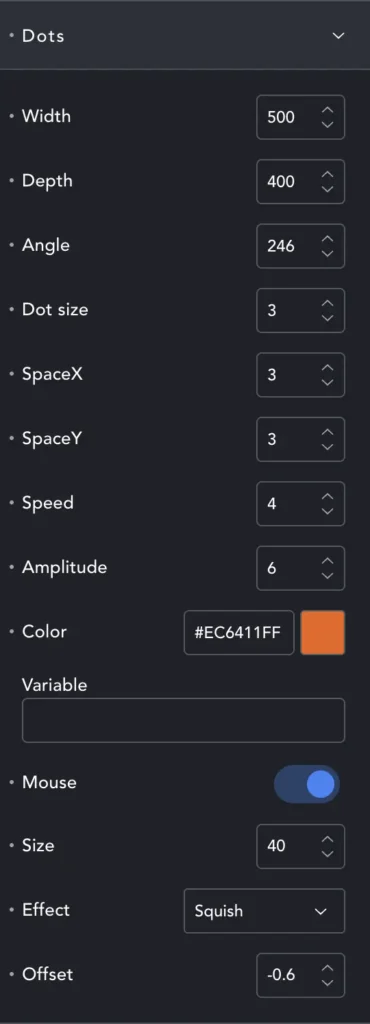
Dots
Width/Depth – These control how large the ‘plane’ is, on which we mount our dots. Larger numbers create more dots and a wider/deeper ‘field of dots’. However, large numbers both mean more dots (more processing to be done) and often ‘less effect’ because our effects gets spread so thin that it loses impact.
Smaller numbers will usually fill the screen, you don’t need 1920×1080 field to fill an HD screen, 500×400 will suffice.
Angle – will rotate the whole field. Around 246 (degrees) it will look like the dots are coming towards you. 0 and they will look like they are flowing away and left a little.
Dot Size – the size of each dot, surprisingly!
Space X/Y – The distance between dots on the X/Y axis.
Speed – How fast the dots move and undulate.
Amplitude – How high the wave peaks are.
You can mess about with these settings. Small width or depth, or large dots, can create interesting clouds or shapes from dots very different to our basic wave pattern.
Color – Obviously this sets the dot color. The ‘Variable‘ field is for CSS variables if your color is defined in a framework or stylesheet.
Mouse – Enables mouse effects. These are a bit tricky, since we’re trying to map a vertical 2D plane (our screen with mouse position) – onto a 3D tilted and moving plane.
Offset – This is to help with the mapping issue. Our mouse is ‘much higher’ than the dots, and ‘casts a shadow’… We can treat offset like the offset of a Box-Shadow. It can help raise or lower the point where our mouse hovers in the 3D space of our dots, and so where the shadow is cast. Between 1 and -1 will usually find the sweet spot.
Size – the size of the ‘shadow’ our mouse cursor throws, or the size of the effect area.
Effect – Squish – our cursor pushes into the dots and creates a ‘dent’. Tint – Changes the color of dots in our effect area. Grow – dots in the effect area get bigger. Pulse – dots in the effect area animate to grow and shrink in a loop.

If you visit the Dotty Configurator, you can play with the settings until you get something you like. Once you have the right settings, click the Copy Settings button.
Now return to Breakdance and the dotty section. Right-click on the Dots section of the element and you can paste the settings in.